Multi Table Option

Contents
(This setting is only available in Print and Export mode)
In tab Option, all tables selected in the previous step (tab Selection) will be shown in the 'tree'. Other tables are hidden and therefore, the design functions having hidden tables will be disabled (grey).
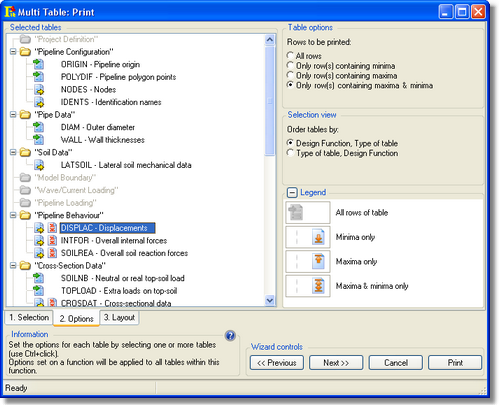
As shown in the screenshot above, space for a second icon is reserved next to the first 'type of table' icon. This second icon represents the selected setting of 'Rows to be printed' option (see below).
Rows to be printed (Output/Result tables only)
The following options are available:
•All rows (default): |
the full table will be printed/exported |
•Only row(s) containing minima ( |
only rows with minimum values of each column are printed/exported |
•Only row(s) containing maxima ( |
only rows with maximum values of each column are printed/exported |
•Only row(s) containing maxima & minima ( |
only rows with extreme values of each column are printed/exported |


Select one ore more tables and click on the appropriate 'Rows to be printed' option button to set this option for output/result tables.
 Use Ctrl and click to select multiple tables, randomly; Hold down the Ctrl key and click on one or more tables.
Use Shift and click to select a range of tables; Click once on a table to set the start of the selection. Hold down the Shift key. Then click again on another table to set the end of the selection. Tables between the first click and the second click will be selected.
Selection View
Tables shown in the tree can be sorted using the following options:
•Design Function, Type of table |
tables will be sorted by the design function, in each design function the corresponding input and output tables can be found (default) |
•Type of table, Design Function |
tables will be sorted by the type of tables (input or output) and within each type of tables the design functions can be found containing the (input or output) tables |
Options set in the previous step (Selection) will also be applied in this step.
Last changed: 14/09/2016