Program Options

Contents
The program options panel gives access to general program settings and information resources. It is shown in place of the Overview panel after program startup and can also be reached by clicking the  button in the Roadmap panel or via the main menu Tools > Options... .

Buttons
About Ple4Win |
Shows a separate window with program & copyright information. |
Help Contents |
Shows this help window with the contents list on the left side. |
Help Search |
Shows this help window with the search tab on the left side. |
Ple4Win Options |
Shows the options panel. Please refer to the items below. |
Small or larger icons & texts are used in the main toolbar, the status bar and the table toolbars.
➢Check "Ask for ..." to prevent deleting rows by mistake. ➢Processing a function all input tables containing data should have the tested status. Checking "Automatically test ...", tables which do not have the tested status, will be tested before processing the function.
For users of the predecessor program PLE-micro-CAD. If checked, the DOS-style table- and column-names ("Shortnames (DOS style)") will be shown in the overview- and data table-panels. For more descriptive names, select the "Longnames" option.
For users of Ple4Win's predecessor PLE-micro-CAD. If "As with PLE3" is selected, the keyboard shortcuts of PLE-micro-CAD are implemented as far as possible. Otherwise, the default Windows keyboard shortcuts will be used. Check keyboard shortcuts for the key assignments in each mode. |


 Ple4Win Options: Data formatting
The option "No formatting" will show all available figures. This option is not recommended since in most cases this layout will not be clear.
Selecting "Apply scientific notation" will show all values with powers of 10. The "Minimum significant figures displayed:" determines the number of figures.
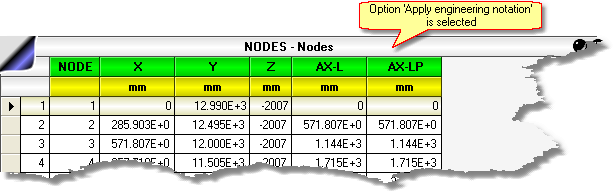
Engineering notation is a version of scientific notation in which the powers of ten are multiples of three.The number of figures is determined by the smallest absolute value in each column.
Usually a user will use the system separators. However, by unchecking the checkbox "Use system separators" the user can define other characters as separators.
|




A Ple4Win.plex project file in a Project folder is extracted in the Work folder. Ple4Win uses these databases in the Work folder as long as the project is open. The.plex database is left unchanged, as long as no data is explicitly saved to it. Also the auto recovery data is saved in the Work folder as well as possible test output files (*.tst).
If this backup option is checked, each time a project is closed a backup of the project is created with the state of the project before opening. The backup file is named ProjectName.pleb. Such a backup project can be opened again by choosing Ple4Backups as file type in the Open Project database dialog (or simply by double clicking on the backup file in Windows Explorer).
A backup is automatically saved in the Work folder every n minutes. This backup will be used to recover the project after a system crash.
Select this option to show the Recent Projects list. The number of last projects to be displayed in this list can be chosen from 2 to 10. |


➢If "Enable test mode" is checked, a file named Ple4Win.tst is created in the User Application Data Folder. Tracing information is written to this file during the run of the program.
➢The "Test level" is only available if the test mode is enabled. If the level is set > 0, while opening a pipeline project file, a file with the same name and with an file extension.tst is created in the Work folder. Debug information is written to this file until the project is closed.
➢The "Leave temporarily files ..." option is only available if Test mode is checked. Usually work files (ending with extension.tmp) will be deleted when closing a pipeline project. If this checkbox is checked, these files are not deleted.
With a rental license the hardware key verifies the date via the Internet. Some (company) firewalls prevent the key to access the internet, causing Ple4Win not to start. If this option is checked, the hardware key will not attempt to get access to the Internet. |


ProgOptions, last changed: 14/09/2016
See also: